前段时间Codex桌面端推出了Windows系统的computer-use插件,相信很多平时用Windows开发的佬都去尝试了一下,我自己也用了一下,使用过程中遇到了一些问题,于是我在站内找解决方案,在此感谢各位佬提供的解决方案,我已成功解决并使用。
那下面呢我就根据我自己的解决过程和站内解决方案来汇总一下,方便后续遇到类似问题的佬一键直达问题根因和解决方法,减少心智负担 
该插件的无法正常使用的情况主要分为两种:
 无法在设置页或插件页看到“computer-use”和“chrome”,即chrome插件和computer-use插件消失或状态异常。
ps:看下面的解决方案之前,先确认不是节点问题导致的插件消失。
一、为什么有“chrome”,不是探讨的“computer-use”插件嘛&问题根因是什么?
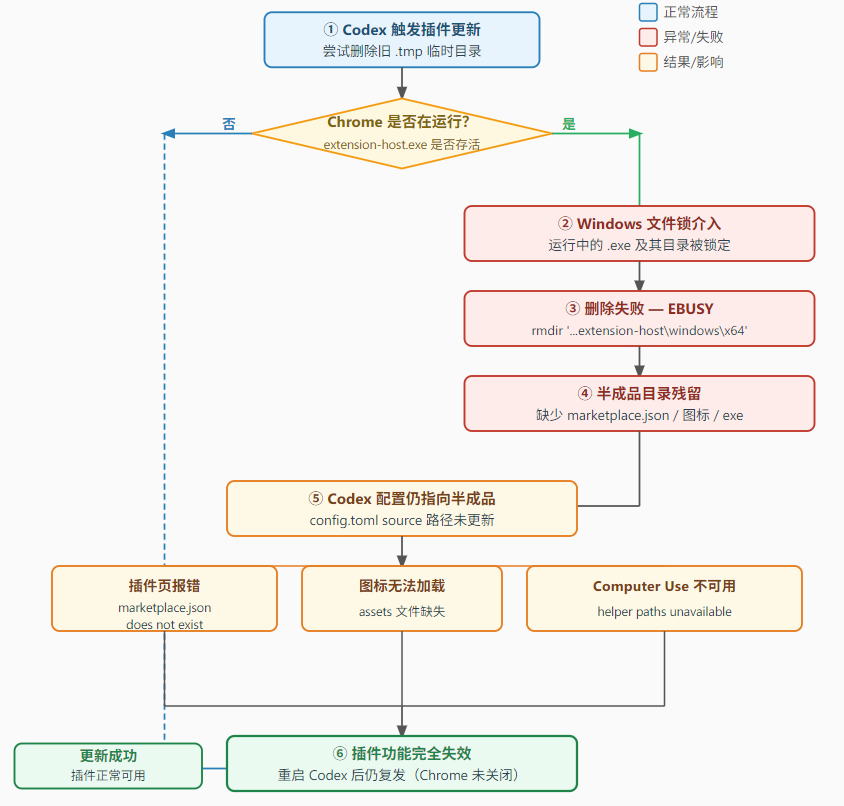
答:这与Codex的插件更新逻辑有关。Codex在更新插件时会先删除旧的临时目录.tmp,如果事先安装了chrome插件,那么这个目录中会包含chrome插件使用的native host,即extension-host.exe,我们都知道Windows系统会对正在运行的.exe 或其所在目录加锁,不允许删除,那么如果更新的时候chrome相关服务在使用,就会导致目录清理失败,留下一个不完整的目录,但Codex配置仍然指向这个半成品目录,所以就找不到正确的插件信息,也就更新失败了。
很多佬肯定尝试过重启Codex,但重启Codex时chrome服务可能仍然开着,这个进程没有可见窗口, Codex再次尝试重建.tmp目录时,又遇到文件锁,再次失败。
帮助理解:
二、如何解决?
以下内容为AI整理,以截图形式呈现:
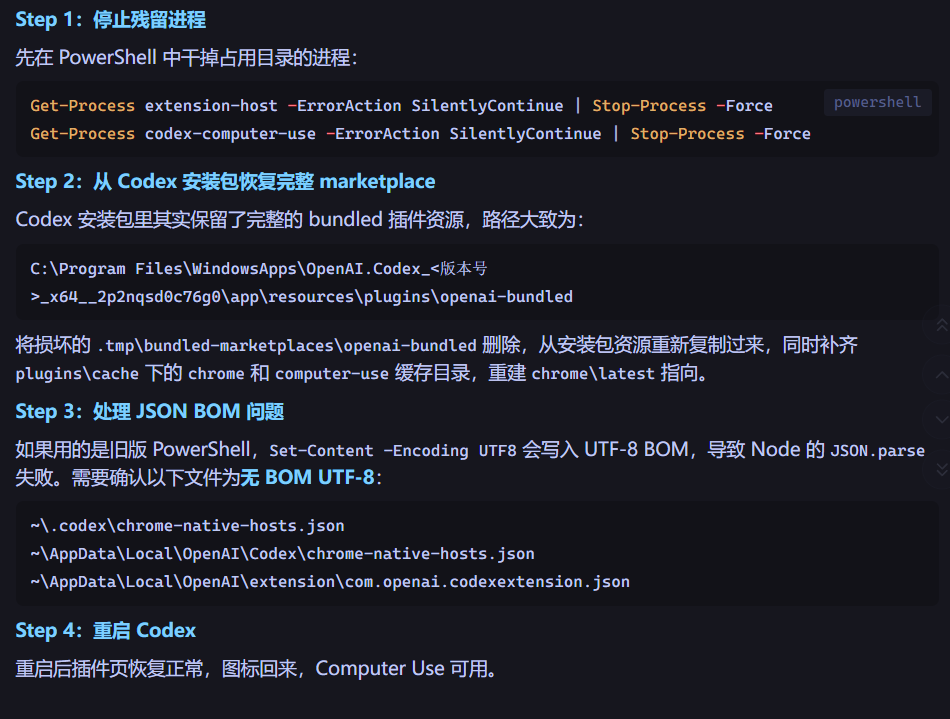
最后给出轮椅版本提示词:
你现在要在 Windows 本机环境中排查并尽量修复 Codex Desktop 的 bundled 插件异常。目标是 Windows 用户目录和 Windows Codex 安装目录。

我的问题现象可能包括:

- Codex 更新后 `Computer Use` 或 `Chrome` 插件消失、不可用、图标不加载。
- 插件页能看到 `computer-use@openai-bundled` / `chrome@openai-bundled`,但点进去报错类似:
  `marketplace file "%USERPROFILE%\.codex\.tmp\bundled-marketplaces\openai-bundled\.agents\plugins\marketplace.json" does not exist`
- 设置页里 Computer Use 显示 unavailable。
- Codex 日志里可能出现 `EBUSY`、`resource busy or locked`、`plugin_cache_windows_file_lock`、`os error 5`、`extension-host.exe`、`extension-host\windows\x64` 等关键词。

请按下面流程执行。所有路径必须通用化,使用 `$env:USERPROFILE`、`$env:LOCALAPPDATA`、`$env:ProgramFiles` 等变量,不要写死某个用户名。

0. 基本原则

1. 先诊断,确认是不是 Windows 文件锁导致的 bundled 插件半更新问题;不要一开始就删除目录或改配置。
2. 修复前必须备份。
3. 不要盲目修改 `[windows] sandbox`。只有日志明确出现 `os error 740` / `请求的操作需要提升` 时,才另行判断是否需要改 `sandbox = "unelevated"`;本提示词处理的是文件锁和 bundled 插件缓存损坏。
4. 不要暴露、打印或复制任何 API key、登录 token、auth.json 内容。
5. 如果你当前无法直接执行 Windows PowerShell,请生成可运行的 `.ps1` 修复脚本放到桌面,并告诉我用 PowerShell 执行。

1. 先收集路径

在 Windows PowerShell 中设置这些变量:

$CodexHome = Join-Path $env:USERPROFILE ".codex"
$BackupRoot = Join-Path $env:USERPROFILE "codex-plugin-backups"
$Desktop = [Environment]::GetFolderPath("Desktop")
$OpenAILocal = Join-Path $env:LOCALAPPDATA "OpenAI"
$CodexLocal = Join-Path $OpenAILocal "Codex"
$ExtensionManifest = Join-Path $OpenAILocal "extension\com.openai.codexextension.json"
$CodexNativeHosts = Join-Path $CodexHome "chrome-native-hosts.json"
$LocalNativeHosts = Join-Path $CodexLocal "chrome-native-hosts.json"
$BundledTmpRoot = Join-Path $CodexHome ".tmp\bundled-marketplaces\openai-bundled"
$BundledMarketplaceJson = Join-Path $BundledTmpRoot ".agents\plugins\marketplace.json"
$PluginCacheRoot = Join-Path $CodexHome "plugins\cache\openai-bundled"
$ChromeCacheRoot = Join-Path $PluginCacheRoot "chrome"
$ComputerUseCacheRoot = Join-Path $PluginCacheRoot "computer-use"

2. 修复前备份

创建带时间戳的备份目录,并备份这些文件和关键目录状态:

$Stamp = Get-Date -Format "yyyyMMdd-HHmmss"
$BackupDir = Join-Path $BackupRoot "openai-bundled-lock-repair-$Stamp"
New-Item -ItemType Directory -Force -Path $BackupDir | Out-Null

$FilesToBackup = @(
  (Join-Path $CodexHome "config.toml"),
  (Join-Path $CodexHome ".codex-global-state.json"),
  $CodexNativeHosts,
  $LocalNativeHosts,
  $ExtensionManifest
)

foreach ($file in $FilesToBackup) {
  if (Test-Path -LiteralPath $file) {
    Copy-Item -LiteralPath $file -Destination $BackupDir -Force
  }
}

$StateFile = Join-Path $BackupDir "pre-repair-state.txt"
@(
  "BackupDir=$BackupDir",
  "CodexHome=$CodexHome",
  "BundledTmpRoot=$BundledTmpRoot",
  "PluginCacheRoot=$PluginCacheRoot",
  "",
  "Processes:",
  (Get-Process extension-host,codex-computer-use -ErrorAction SilentlyContinue | Format-Table -AutoSize | Out-String),
  "",
  "Bundled tmp listing:",
  (if (Test-Path -LiteralPath $BundledTmpRoot) { Get-ChildItem -LiteralPath $BundledTmpRoot -Force -Recurse -ErrorAction SilentlyContinue | Select-Object -First 200 FullName,Length | Format-Table -AutoSize | Out-String } else { "missing" }),
  "",
  "Chrome cache listing:",
  (if (Test-Path -LiteralPath $ChromeCacheRoot) { Get-ChildItem -LiteralPath $ChromeCacheRoot -Force -ErrorAction SilentlyContinue | Format-Table -AutoSize | Out-String } else { "missing" }),
  "",
  "Computer Use cache listing:",
  (if (Test-Path -LiteralPath $ComputerUseCacheRoot) { Get-ChildItem -LiteralPath $ComputerUseCacheRoot -Force -ErrorAction SilentlyContinue | Format-Table -AutoSize | Out-String } else { "missing" })
) | Set-Content -LiteralPath $StateFile -Encoding UTF8

3. 判断是否属于 Windows 文件锁导致的 bundled 插件损坏

请检查以下内容。

3.1 检查 Codex 插件状态

优先运行:

codex plugin marketplace list
codex plugin list

确认:

- `openai-bundled` marketplace 是否存在。
- `chrome@openai-bundled` 是否 installed / enabled。
- `computer-use@openai-bundled` 是否 installed / enabled。

如果 `codex` 命令因 WindowsApps alias 拒绝访问失败,请不要卡住,改为继续检查文件和日志。

3.2 检查 marketplace 文件和关键插件文件

检查:

Test-Path -LiteralPath $BundledMarketplaceJson
Test-Path -LiteralPath (Join-Path $BundledTmpRoot "plugins\chrome\.codex-plugin\plugin.json")
Test-Path -LiteralPath (Join-Path $BundledTmpRoot "plugins\chrome\scripts\browser-client.mjs")
Test-Path -LiteralPath (Join-Path $BundledTmpRoot "plugins\chrome\extension-host\windows\x64\extension-host.exe")
Test-Path -LiteralPath (Join-Path $BundledTmpRoot "plugins\computer-use\.codex-plugin\plugin.json")
Test-Path -LiteralPath (Join-Path $BundledTmpRoot "plugins\computer-use\scripts\computer-use-client.mjs")

如果 `marketplace.json` 缺失,或 `plugins\chrome` / `plugins\computer-use` 目录只有半截内容,说明 bundled marketplace 可能已损坏。

3.3 检查 latest 指向和缓存关键文件

检查:

$ChromeLatest = Join-Path $ChromeCacheRoot "latest"
$ComputerUseLatest = Join-Path $ComputerUseCacheRoot "latest"
Get-Item -LiteralPath $ChromeLatest -Force -ErrorAction SilentlyContinue | Format-List *
Get-Item -LiteralPath $ComputerUseLatest -Force -ErrorAction SilentlyContinue | Format-List *

Test-Path -LiteralPath (Join-Path $ChromeLatest "scripts\browser-client.mjs")
Test-Path -LiteralPath (Join-Path $ChromeLatest "extension-host\windows\x64\extension-host.exe")
Test-Path -LiteralPath (Join-Path $ComputerUseLatest "scripts\computer-use-client.mjs")
Test-Path -LiteralPath (Join-Path $ComputerUseLatest "node_modules\@oai\sky\bin\windows\codex-computer-use.exe")

异常特征:

- `latest` 指向 `%USERPROFILE%\.codex\.tmp\bundled-marketplaces\openai-bundled\plugins\chrome` 这类临时目录。
- 目标目录缺少 `scripts\browser-client.mjs`、`extension-host.exe`、`.codex-plugin\plugin.json`、插件图标等关键文件。

3.4 检查日志关键词

查最新 Codex Desktop 日志和 `.codex` 会话日志:

$LogRoots = @(
  (Join-Path $env:LOCALAPPDATA "Packages\OpenAI.Codex_2p2nqsd0c76g0\LocalCache\Local\Codex\Logs"),
  (Join-Path $CodexHome "sessions")
)

$Patterns = "EBUSY|resource busy or locked|plugin_cache_windows_file_lock|failed to back up plugin cache entry|failed to remove existing plugin cache entry|os error 5|拒绝访问|marketplace\.json.*does not exist|extension-host\\windows\\x64|Windows Computer Use helper paths are unavailable"

foreach ($root in $LogRoots) {
  if (Test-Path -LiteralPath $root) {
    Get-ChildItem -LiteralPath $root -Recurse -File -ErrorAction SilentlyContinue |
      Sort-Object LastWriteTime -Descending |
      Select-Object -First 80 |
      Select-String -Pattern $Patterns -AllMatches -ErrorAction SilentlyContinue |
      Select-Object Path,LineNumber,Line |
      Format-List
  }
}

如果同时满足下面多项,基本可以确认是本问题:

- 插件页报 `marketplace.json does not exist`。
- 图标不加载。
- `openai-bundled` 的 `.tmp\bundled-marketplaces` 目录缺文件。
- 日志出现 `EBUSY` / `resource busy or locked` / `plugin_cache_windows_file_lock` / `os error 5`。
- 锁相关路径涉及 `extension-host.exe` 或 `extension-host\windows\x64`。

如果主要错误是 `os error 740` / `请求的操作需要提升` / `windows sandbox failed: spawn setup refresh`,先停止本流程,改查 Windows sandbox 权限问题。

4. 如果确认是 Windows 文件锁导致的问题,执行修复

4.1 停止可能锁目录的残留进程

先提醒我关闭 Chrome。随后停止这些后台进程:

Get-Process extension-host -ErrorAction SilentlyContinue | Stop-Process -Force
Get-Process codex-computer-use -ErrorAction SilentlyContinue | Stop-Process -Force
Start-Sleep -Seconds 2

不要强杀当前 Codex Desktop 主进程,除非我明确同意;否则可能中断当前会话。

4.2 找到 Codex 安装包里的完整 openai-bundled 源

优先从 WindowsApps 中找最新 Codex 安装目录:

$BundledSource = $null
$PackageRoots = Get-ChildItem -LiteralPath (Join-Path $env:ProgramFiles "WindowsApps") -Directory -ErrorAction SilentlyContinue |
  Where-Object { $_.Name -like "OpenAI.Codex_*_x64__2p2nqsd0c76g0" } |
  Sort-Object LastWriteTime -Descending

foreach ($pkg in $PackageRoots) {
  $candidate = Join-Path $pkg.FullName "app\resources\plugins\openai-bundled"
  if (Test-Path -LiteralPath (Join-Path $candidate ".agents\plugins\marketplace.json")) {
    $BundledSource = $candidate
    break
  }
}

if (-not $BundledSource) {
  throw "找不到 Codex 安装包中的 openai-bundled 源目录,请先确认 Codex Desktop 已安装且 WindowsApps 可访问。"
}

"Bundled source: $BundledSource"

源目录必须包含:

Test-Path -LiteralPath (Join-Path $BundledSource ".agents\plugins\marketplace.json")
Test-Path -LiteralPath (Join-Path $BundledSource "plugins\chrome\.codex-plugin\plugin.json")
Test-Path -LiteralPath (Join-Path $BundledSource "plugins\computer-use\.codex-plugin\plugin.json")

4.3 读取插件版本

从 `.codex-plugin\plugin.json` 读取版本:

function Get-PluginVersion([string]$PluginDir) {
  $pluginJson = Join-Path $PluginDir ".codex-plugin\plugin.json"
  if (-not (Test-Path -LiteralPath $pluginJson)) {
    throw "缺少 plugin.json: $pluginJson"
  }
  $json = Get-Content -LiteralPath $pluginJson -Raw | ConvertFrom-Json
  if (-not $json.version) {
    throw "plugin.json 中缺少 version: $pluginJson"
  }
  return [string]$json.version
}

$ChromeVersion = Get-PluginVersion (Join-Path $BundledSource "plugins\chrome")
$ComputerUseVersion = Get-PluginVersion (Join-Path $BundledSource "plugins\computer-use")
"ChromeVersion=$ChromeVersion"
"ComputerUseVersion=$ComputerUseVersion"

4.4 重建损坏的 bundled marketplace

删除损坏的 `.tmp` marketplace 前,再次停止锁进程:

Get-Process extension-host -ErrorAction SilentlyContinue | Stop-Process -Force
Get-Process codex-computer-use -ErrorAction SilentlyContinue | Stop-Process -Force
Start-Sleep -Seconds 2

if (Test-Path -LiteralPath $BundledTmpRoot) {
  Remove-Item -LiteralPath $BundledTmpRoot -Recurse -Force -ErrorAction Stop
}

New-Item -ItemType Directory -Force -Path (Split-Path -Parent $BundledTmpRoot) | Out-Null
Copy-Item -LiteralPath $BundledSource -Destination $BundledTmpRoot -Recurse -Force

复制后校验:

Get-Content -LiteralPath $BundledMarketplaceJson -Raw | ConvertFrom-Json | Out-Null
Test-Path -LiteralPath (Join-Path $BundledTmpRoot "plugins\chrome\scripts\browser-client.mjs")
Test-Path -LiteralPath (Join-Path $BundledTmpRoot "plugins\chrome\extension-host\windows\x64\extension-host.exe")
Test-Path -LiteralPath (Join-Path $BundledTmpRoot "plugins\computer-use\scripts\computer-use-client.mjs")

4.5 重建 chrome / computer-use cache

$ChromeSource = Join-Path $BundledSource "plugins\chrome"
$ComputerUseSource = Join-Path $BundledSource "plugins\computer-use"
$ChromeVersionDir = Join-Path $ChromeCacheRoot $ChromeVersion
$ComputerUseVersionDir = Join-Path $ComputerUseCacheRoot $ComputerUseVersion

New-Item -ItemType Directory -Force -Path $ChromeCacheRoot | Out-Null
New-Item -ItemType Directory -Force -Path $ComputerUseCacheRoot | Out-Null

if (Test-Path -LiteralPath $ChromeVersionDir) {
  Remove-Item -LiteralPath $ChromeVersionDir -Recurse -Force
}
if (Test-Path -LiteralPath $ComputerUseVersionDir) {
  Remove-Item -LiteralPath $ComputerUseVersionDir -Recurse -Force
}

Copy-Item -LiteralPath $ChromeSource -Destination $ChromeVersionDir -Recurse -Force
Copy-Item -LiteralPath $ComputerUseSource -Destination $ComputerUseVersionDir -Recurse -Force

重建 `latest`。优先使用 junction;如果失败,则复制成普通目录:

function Reset-Latest([string]$LatestPath, [string]$TargetPath) {
  if (Test-Path -LiteralPath $LatestPath) {
    Remove-Item -LiteralPath $LatestPath -Recurse -Force
  }
  cmd /c mklink /J "`"$LatestPath`"" "`"$TargetPath`"" | Out-Null
  if (-not (Test-Path -LiteralPath $LatestPath)) {
    Copy-Item -LiteralPath $TargetPath -Destination $LatestPath -Recurse -Force
  }
}

Reset-Latest (Join-Path $ChromeCacheRoot "latest") $ChromeVersionDir
Reset-Latest (Join-Path $ComputerUseCacheRoot "latest") $ComputerUseVersionDir

校验关键文件:

$RequiredFiles = @(
  (Join-Path $ChromeVersionDir ".codex-plugin\plugin.json"),
  (Join-Path $ChromeVersionDir "scripts\browser-client.mjs"),
  (Join-Path $ChromeVersionDir "extension-host\windows\x64\extension-host.exe"),
  (Join-Path $ChromeVersionDir "assets\google-chrome.png"),
  (Join-Path $ComputerUseVersionDir ".codex-plugin\plugin.json"),
  (Join-Path $ComputerUseVersionDir "scripts\computer-use-client.mjs"),
  (Join-Path $ComputerUseVersionDir "node_modules\@oai\sky\bin\windows\codex-computer-use.exe"),
  (Join-Path $ComputerUseVersionDir "assets\app-icon.png")
)

$Missing = $RequiredFiles | Where-Object { -not (Test-Path -LiteralPath $_) }
if ($Missing.Count -gt 0) {
  throw "修复后仍缺少关键文件:`n$($Missing -join "`n")"
}

4.6 修复 Chrome native host JSON

如果 native host manifest 指向损坏的 `chrome\latest` 或 `.tmp` 路径,请改成固定版本目录中的 `extension-host.exe`。

$ExtensionHostExe = Join-Path $ChromeVersionDir "extension-host\windows\x64\extension-host.exe"
if (-not (Test-Path -LiteralPath $ExtensionHostExe)) {
  throw "找不到 extension-host.exe: $ExtensionHostExe"
}

function Write-JsonNoBom([string]$Path, $Object) {
  $jsonText = $Object | ConvertTo-Json -Depth 20
  [System.IO.File]::WriteAllText($Path, $jsonText, [System.Text.UTF8Encoding]::new($false))
}

foreach ($jsonPath in @($ExtensionManifest, $CodexNativeHosts, $LocalNativeHosts)) {
  if (-not (Test-Path -LiteralPath $jsonPath)) {
    continue
  }
  $obj = Get-Content -LiteralPath $jsonPath -Raw | ConvertFrom-Json
  $changed = $false

  if ($obj.path -and (($obj.path -like "*\chrome\latest\*") -or ($obj.path -like "*\.tmp\bundled-marketplaces\*"))) {
    $obj.path = $ExtensionHostExe
    $changed = $true
  }

  if ($changed) {
    Write-JsonNoBom $jsonPath $obj
  } else {
    # 即使未改内容,也重新写成无 BOM UTF-8,避免 Node/Chromium 解析 BOM 异常。
    Write-JsonNoBom $jsonPath $obj
  }
}

4.7 确认插件启用状态

检查 `$CodexHome\config.toml` 中是否存在这些插件配置。如果已经存在并 enabled,不要重复改:

[plugins."chrome@openai-bundled"]
enabled = true

[plugins."computer-use@openai-bundled"]
enabled = true

[plugins."browser@openai-bundled"]
enabled = true

如果插件缺失或 disabled,再备份后最小化修复。不要改模型 provider、API key、登录态或无关项目配置。

5. 最终验证

修复后请验证:

Get-Content -LiteralPath $BundledMarketplaceJson -Raw | ConvertFrom-Json | Out-Null

Test-Path -LiteralPath (Join-Path $BundledTmpRoot "plugins\chrome\assets\google-chrome.png")
Test-Path -LiteralPath (Join-Path $BundledTmpRoot "plugins\computer-use\assets\app-icon.png")
Test-Path -LiteralPath (Join-Path $ChromeCacheRoot "latest\scripts\browser-client.mjs")
Test-Path -LiteralPath (Join-Path $ChromeCacheRoot "latest\extension-host\windows\x64\extension-host.exe")
Test-Path -LiteralPath (Join-Path $ComputerUseCacheRoot "latest\scripts\computer-use-client.mjs")
Test-Path -LiteralPath (Join-Path $ComputerUseCacheRoot "latest\node_modules\@oai\sky\bin\windows\codex-computer-use.exe")

foreach ($jsonPath in @($ExtensionManifest, $CodexNativeHosts, $LocalNativeHosts)) {
  if (Test-Path -LiteralPath $jsonPath) {
    Get-Content -LiteralPath $jsonPath -Raw | ConvertFrom-Json | Out-Null
    "JSON OK: $jsonPath"
  }
}

如果可用,再运行:

codex plugin marketplace list
codex plugin list

重启 Codex Desktop 后,确认:

- 插件页可以打开 `Chrome` 和 `Computer Use`。
- 插件图标恢复。
- `computer-use@openai-bundled` 和 `chrome@openai-bundled` 是 installed / enabled。
- 设置页 Computer Use 不再显示 unavailable。

6. 最终回复要求

请最后告诉我:

1. 是否确认这是 Windows 文件锁导致的 bundled 插件半更新。
2. 证据是什么,例如日志中的 `EBUSY` / `plugin_cache_windows_file_lock` / `os error 5` / `marketplace.json does not exist`。
3. 备份目录在哪里。
4. 实际改了哪些文件或目录。
5. 哪些验证通过。
6. 如果没有修复,请明确卡在哪一步,不要假装已修好。
或者参考更泛用的提示词,链接:
 Codex 更新后 Chrome / Computer Use 插件消失/无法使用,如何让codex自己修复
开发调优
Codex 更新后 Chrome / Computer Use 插件消失/无法使用,如何让codex自己修复
开发调优
昨天更新 Codex Windows 版后,我一开始还能正常用 Chrome 插件和 Computer Use 插件,后来突然在 Codex 里找不到这两个插件了。 一开始我以为是论坛里说的 node_repl / Windows sandbox 权限问题,但让 Codex 自己排查后发现不是同一个根因。我这边实际是: openai-bundled 插件市场源异常; chrome/lates…
 插件可见,但是不可用,报错关键词为:
node_repl kernel exited unexpectedly
windows sandbox failed: spawn setup refresh
setup refresh: failed to spawn ... codex-windows-sandbox-setup.exe: 请求的操作需要提升。 (os error 740)
这种情况的解决方案比较清晰,指路:
 关于codex windows端下computer-use插件node_repl相关权限错误的解决方案
开发调优
关于codex windows端下computer-use插件node_repl相关权限错误的解决方案
开发调优
[图片] 可能的关键词: node_repl kernel exited unexpectedly windows sandbox failed: spawn setup refresh setup refresh: failed to spawn ... codex-windows-sandbox-setup.exe: 请求的操作需要提升。 (os error 740) 解决方案是Com…
![[图片]](https://cdn3.ldstatic.com/original/4X/1/2/9/1297eb7beaa141620ad9f26a8c04973f906ace22.png)
希望能帮到遇到同样问题的佬
2 个帖子 - 2 位参与者