搭建waline
官网已经给出很详细的搭建教程了
启用 waline 评论
在博客配置文件 _config.stellar.yml 中启用 waline 评论
######## Comments ########
comments:
  service: waline # beaudar, utterances, giscus, twikoo, waline, artalk
  comment_title: 快来参与讨论吧~

  # Waline
  # https://waline.js.org/
  waline:
    js: https://gcore.jsdelivr.net/npm/@waline/client@3.1.3/dist/waline.js
    css: https://gcore.jsdelivr.net/npm/@waline/client@3.1.3/dist/waline.css
    meta_css: https://gcore.jsdelivr.net/npm/@waline/client@3.1.3/dist/waline-meta.css
    # Waline server address url, you should set this to your own link
    serverURL: https://waline.js.org/ # 这里改成自己的链接
    locale:
      placeholder:
        😎嗨,朋友,留下脚印再走呗。
    reaction: true
自定义模板
打开vercel给你创建的GitHub仓库,找到index.cjs,将代码替换为
const Application = require('@waline/vercel');

module.exports = Application({
    async postSave(comment) {
        // do what ever you want after save comment
    },
    mailSubjectAdmin: '{{site.name | safe}} 上有新评论了',
    mailTemplateAdmin: `<div style="background: url(https://image.baidu.com/search/down?url=https://tva3.sinaimg.cn/large/c56b8822ly1h62npb7s1ej201y01y0lh.jpg);padding:40px 0px 20px;margin:0px;background-color:#FFCDCE;width:100%;">
	<style type="text/css">@media screen and (max-width:600px){.afterimg,.beforeimg{display:none!important}}</style>
	<div style="border-radius: 10px 10px 10px 10px;font-size:14px;color: #555555;width: 530px;font-family:'Century Gothic','Trebuchet MS','Hiragino Sans GB',微软雅黑,'Microsoft Yahei',Tahoma,Helvetica,Arial,'SimSun',sans-serif;margin:50px auto;max-width:100%;background: ##ffffff;">
		<img class="beforeimg" style="width:530px;height:317px;pointer-events:none" src="https://npm.elemecdn.com/hexo-butterfly-envelope/lib/before.png">
		<img src="https://tc.ailingsi.top/i/2026/05/02/69f5903474029.png" style="width:100%;overflow:hidden;pointer-events:none;margin-top: -120px;">
		<div style="width:100%;background:#f8d1ce;color:#9d2850;background-image: -moz-linear-gradient(0deg, rgb(67, 198, 184), rgb(255, 209, 244));height: 66px;background: url(https://tva2.sinaimg.cn/large/c56b8822ly1h61tb7tagcj20ii01u3yc.jpg) left top no-repeat;display: flex;justify-content: center;flex-direction: column;">
		<p style="font-size:16px;font-weight: bold;text-align:center;word-break:break-all;margin:0;">
		您在<a style="text-decoration:none;color: #9d2850;" href="{{site.url}}"target="_blank">{{site.name}}</a>上的文章有了新的评论</p>
		</div>
		<div class="formmain" style="background:#fff;width:100%;max-width:800px;margin:auto auto;overflow:hidden;margin-bottom: -155px;">
			<div style="margin:40px auto;width:90%;"><p><strong>{{self.nick}}</strong> 回复说:</p>
			<div style="background: #fafafa repeating-linear-gradient(-45deg,#fff,#fff 1.125rem,transparent 1.125rem,transparent 2.25rem);box-shadow: 0 2px 5px rgba(0, 0, 0, 0.15);margin:20px 0px;padding:15px;border-radius:5px;font-size:15px;color:#555555;">{{self.comment | safe}}</div>
			<p style="text-align:center;position: relative;z-index: 99;">您可以点击<a style="text-decoration:none;color:#cf5c83" href="{{site.postUrl}}" target="_blank">查看回复的完整內容</a></p>
			<img src="https://npm.elemecdn.com/hexo-butterfly-envelope/lib/line.png" style="width:100%;margin:25px auto 5px auto;display:block;pointer-events:none">
			<p class="bottomhr" style="font-size:12px;text-align:center;color:#999">笑的博客竭诚为您服务!</p>
			</div>
		</div>
		<img class="afterimg" style="width:535px;height:317px;z-index:100;margin-left: -3px;"src="https://npm.elemecdn.com/hexo-butterfly-envelope/lib/after.png">
	</div>
</div>`,
    mailSubject: '{{parent.nick}},您在『{{site.name}}』上发表的评论收到了来自 {{self.nick}} 的回复',
    mailTemplate: `<div style="background: url(https://image.baidu.com/search/down?url=https://tva3.sinaimg.cn/large/c56b8822ly1h62npb7s1ej201y01y0lh.jpg);padding:40px 0px 20px;margin:0px;background-color:#FFCDCE;width:100%;">
	<style type="text/css">@media screen and (max-width:600px){.afterimg,.beforeimg{display:none!important}}</style>
	<div style="border-radius: 10px 10px 10px 10px;font-size:14px;color: #555555;width: 530px;font-family:'Century Gothic','Trebuchet MS','Hiragino Sans GB',微软雅黑,'Microsoft Yahei',Tahoma,Helvetica,Arial,'SimSun',sans-serif;margin:50px auto;max-width:100%;background: ##ffffff;">
		<img class="beforeimg" style="width:530px;height:317px;z-index:-100;pointer-events:none" src="https://npm.elemecdn.com/hexo-butterfly-envelope/lib/before.png">
		<img src="https://tc.ailingsi.top/i/2026/05/02/69f5903474029.png" style="width:100%;overflow:hidden;pointer-events:none;margin-top: -120px;">
		<div style="width:100%;background:#f8d1ce;color:#9d2850;background-image: -moz-linear-gradient(0deg, rgb(67, 198, 184), rgb(255, 209, 244));height: 66px;background: url(https://tva2.sinaimg.cn/large/c56b8822ly1h61tb7tagcj20ii01u3yc.jpg) left top no-repeat;display: flex;justify-content: center;flex-direction: column;">
		<p style="font-size:16px;font-weight: bold;text-align:center;word-break:break-all;margin:0;">
		您在<a style="text-decoration:none;color: #9d2850;" href="{{site.url}}">『{{site.name | safe}}』</a>上的留言有新回复啦!</p>
		</div>
		<div class="formmain" style="background:#fff;width:100%;max-width:800px;margin:auto auto;overflow:hidden;margin-bottom: -155px;">
			<div style="margin:40px auto;width:90%;"><p>😊Hi,{{parent.nick}},您曾在文章上发表评论:</p>
			<div style="background: #fafafa repeating-linear-gradient(-45deg,#fff,#fff 1.125rem,transparent 1.125rem,transparent 2.25rem);box-shadow: 0 2px 5px rgba(0, 0, 0, 0.15);margin:20px 0px;padding:15px;border-radius:5px;font-size:15px;color:#555555;">{{parent.comment | safe}}</div>
			<p><strong>{{self.nick}}</strong> 给您的回复如下:</p>
			<div style="background: #fafafa repeating-linear-gradient(-45deg,#fff,#fff 1.125rem,transparent 1.125rem,transparent 2.25rem);box-shadow: 0 2px 5px rgba(0, 0, 0, 0.15);margin:20px 0px;padding:15px;border-radius:5px;font-size:15px;color:#555555;">{{self.comment | safe}}</div>
			<p>您可以点击<a style="text-decoration:none; color:#cf5c83" href="{{site.postUrl}}" target="_blank"> 查看回复的完整內容 </a>,欢迎再次光临<a style="text-decoration:none; color:#cf5c83" href="{{site.url}}" target="_blank"> {{site.name}} </a>。<hr />
			<p style="font-size:14px;color:#b7adad;text-align:center;position: relative;z-index: 99;">本邮件为系统自动发送,请勿直接回复邮件哦,可到博文内容回复。<br />{{site.url}}</p>
			</p>
			<img src="https://npm.elemecdn.com/hexo-butterfly-envelope/lib/line.png" style="width:100%;margin:25px auto 5px auto;display:block;pointer-events:none">
			<p class="bottomhr" style="font-size:12px;text-align:center;color:#999">笑的博客竭诚为您服务!</p>
			</div>
		</div>
		<img class="afterimg" style="width:535px;height:317px;z-index:100;margin-left: -3px;"src="https://npm.elemecdn.com/hexo-butterfly-envelope/lib/after.png">
	</div>
</div>`
});
可以进行修改,将其中一些字符串替换成你自己的
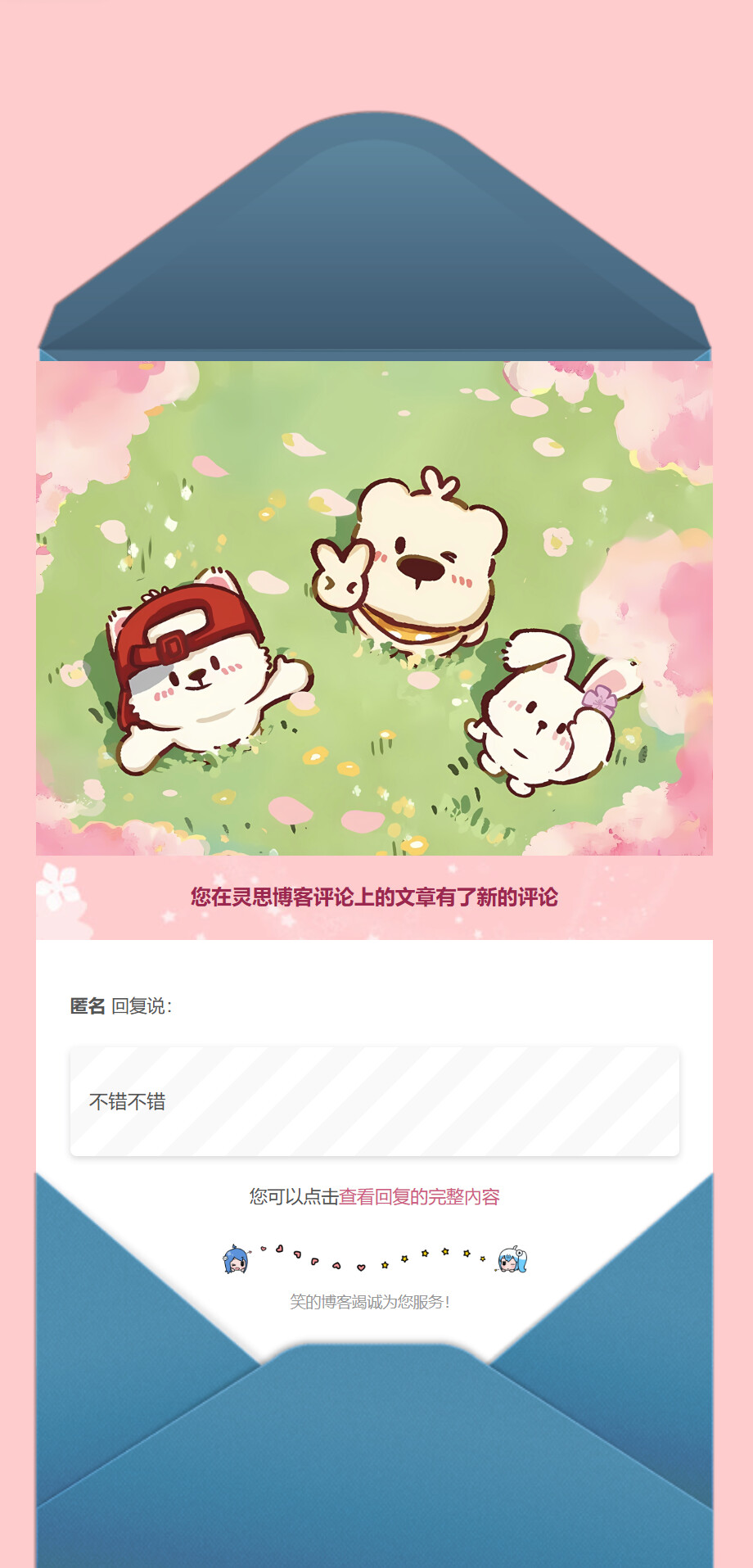
预览
配置邮件通知
登录到vercel,找到自己的项目设置,添加环境变量Environment Variables
获取qq授权码
以QQ邮箱为例 登录QQ邮箱网页版,右上角呼出侧边栏,然后点左下角设置,切换到标准版 然后点击左上角设置,点击下方的账号与安全,点击设备管理,授权码管理,可以添加授权码(如未启用,请先启用smtp服务),
手机版的表格有些bug,横屏才能看全,如果显示[email protected],刷新一下就行了~
SMTP_USER一致(选填,需与SENDER_NAME同时填入)
恭喜你,可以顺利接收到邮箱通知了
1 个帖子 - 1 位参与者
来源: linux.do查看原文